
Video Transcript RAG Search
MediaJots Overview
What MediaJots Is
What MediaJots Is
- How it is built — Python backend +
pywebviewbridge + localui/index.htmlfrontend. - What it helps with — turning long audio/video into something you can read and work with: transcript, summary, and structured OutScript.
- What you can do in-app — tabs for OutScript workflow, Podcast RSS ingest, Keyword Search, AI Search, History, and Settings.
- Why it feels fast after first run — transcript packages, metadata, and read-state are cached in SQLite.
End-to-End Workflow in the OutScript Tab
End-to-end Workflow in the OutScript Tab
- Get Details — URL is normalized; media stream and metadata are resolved (title, duration, audio URL/ext, platform behavior).
- Prepare/Transcribe — audio is staged locally, uploaded to AssemblyAI, and polled until transcript completion.
- Hydrate transcript package — app stores raw transcript, sentence timing JSON, utterance/speaker-derived data, and cache metadata.
- Generate with LLM — OpenRouter transforms transcript into OutScript JSON + markdown article + plain-language summary.
- Reopen from cache — subsequent visits to the same source URL can load details/transcript/outscript directly from
video_cache.
In practice, this means the first run does the heavy lifting, and repeat visits are much quicker.
result = api.get_video_details(video_url)
result = api.transcribe_audio_url(src, audio_url, title, description, stage_id)
llm = api.process_transcript_with_llm(src, transcript_text, title, description, sentences_json, speaker_names_json)
Data Model and Persistence Behavior
Data Model and Persistence Behavior
app_settingskeeps provider keys and model choice (assembly_ai_api_key,openrouter_api_key,openrouter_model).video_cachekeeps source URL, media metadata, transcript payloads, OutScript JSON, summary text, read state, and estimated time saved.transcript_minute_index+transcript_minute_ftspower exact-term minute search.ai_search_chunksstores embedding chunks for semantic retrieval and RAG answers.- Cache behavior uses canonical URLs and upserts, so you do not end up with duplicate rows for the same media.
OutScript Generation and Speaker-Aware Structure
OutScript Generation and Speaker-aware Structure
- Structured output — OutScript is validated with typed models and normalized before save.
- Speaker-aware output — diarization hints and speaker-map reconciliation are applied before final rendering.
- Safe fallback path — if strict model output fails, the app falls back to transcript-derived structure so you still get usable output.
- Editable results — speaker names and derived markdown/sections can be saved back with
save_processed_data.
Search Capabilities
Search Capabilities
- Keyword Search (lexical):
- Builds minute rows from sentence timestamps (or word-count fallback).
- Uses FTS5 when available, with SQL
LIKEfallback when not. - Returns seek offsets so users can jump back into transcript context.
- AI Search (semantic + RAG):
- Embeds minute chunks with OpenRouter embeddings.
- Retrieves top similar chunks via
sqlite-vecor Python cosine fallback. - Generates grounded answers with strict JSON validation and source citations.
Use both together: keyword search for exact terms, AI search for intent-level questions.
kw = api.search_keyword_minutes(query="vector", platform="YouTube", limit=300)
ai = api.ai_search_query("Where does the speaker explain vector fallback?")
Additional Platform Features
Additional Platform Features
- Podcast RSS ingest with episode listing and "Add to OutScript" handoff.
- History tools with open/delete actions, bulk clear, and read tracking.
- Read/time-saved metrics based on transcript/OutScript reading-time estimates.
- Clear status and error messaging across extraction, transcription, indexing, and LLM calls.
- Settings-driven controls including keyword and AI index rebuild triggers.
How This Chapter Connects to Later Chapters
How This Chapter Connects to Later Chapters
- Chapter 1 (this file) gives the system-level map.
- Chapter 2 (How to Use MediaJots) is the practical user walkthrough.
- Chapter 3 (Keyword Search) deep-dives lexical indexing and minute retrieval internals.
- Chapter 4 (AI Search) deep-dives embeddings, vector retrieval, and RAG answer generation.
Use this chapter as the orientation layer before the feature-specific chapters.
How to Use MediaJots
Setup and Required Keys
Setup and Required Keys
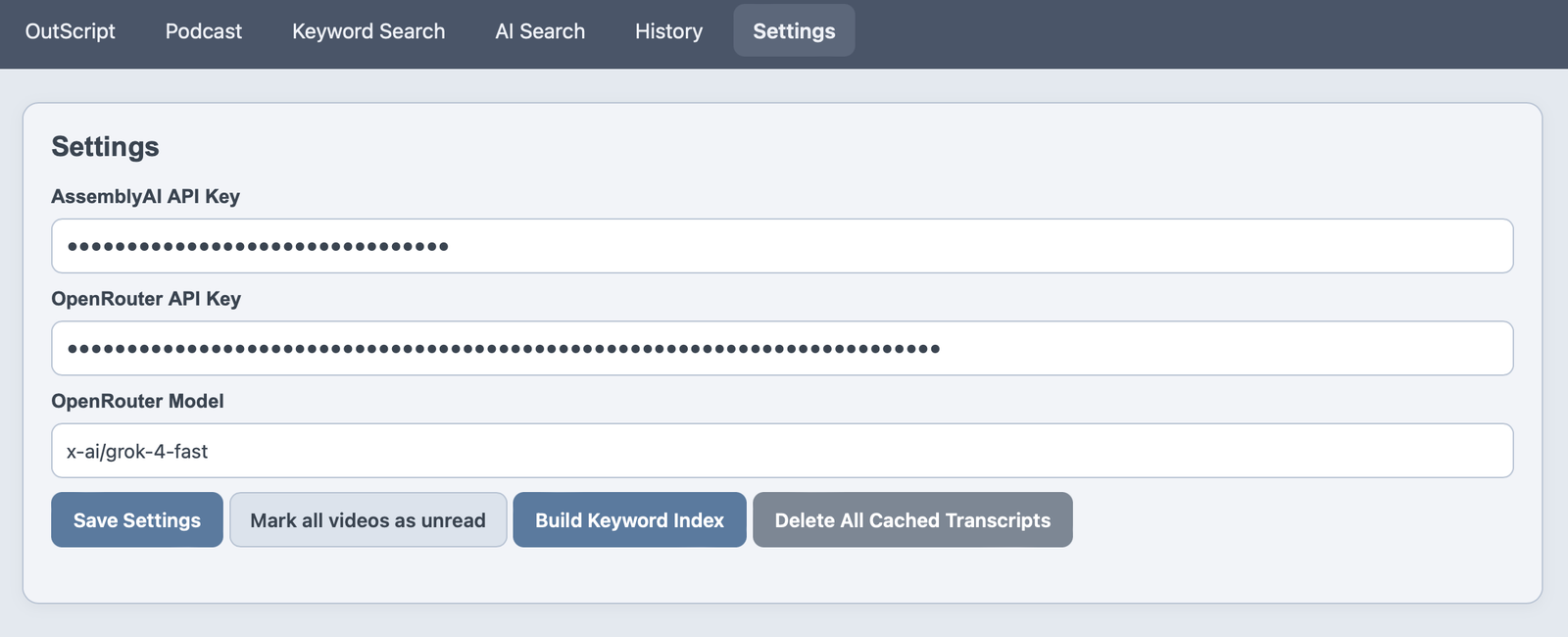
Before running workflows, open the Settings tab and configure:
assembly_ai_api_keyfor transcriptionopenrouter_api_keyfor summary/OutScript and AI Searchopenrouter_modelfor LLM generation
After saving settings, use the index buttons when needed:
- Build Keyword Index
- Build AI Search Index
This ensures search tabs are ready after you process content.
Process a Video End-to-End
Process a Video End-to-End
Use the OutScript tab in this order:
- Paste a supported video URL.
- Click Get Details to resolve media metadata and stream URL.
- Click Generate OutScript to run transcription + LLM processing.
- Review transcript, summary, and OutScript output.
- Click Save to persist final edited state.
The app automatically reuses cache when the same source URL is reopened.
details = api.get_video_details(video_url)
tx = api.transcribe_audio_url(src, audio_url, title, description, stage_id)
llm = api.process_transcript_with_llm(src, tx["text"], title, description, sentences_json, speaker_names_json)
Use Podcast RSS Input
Use Podcast RSS Input
If your content source is podcast-first:
- Open Podcast tab.
- Paste RSS feed URL.
- Click Load Feed.
- Choose an episode and click Add to OutScript.
- Continue in OutScript tab with Get Details / Generate OutScript flow.
This bridges feed discovery and the same transcript workflow used for video URLs.
Review and Edit Speaker-Aware Output
Review and Edit Speaker-Aware Output
After generation:
- Verify transcript quality in the transcript panel.
- Review summary for clarity and accuracy.
- Inspect OutScript sections, timestamps, and speaker labeling.
- Adjust speaker names where needed.
- Save processed data to persist edits.
Use this step to make the OutScript accurate and easy to revisit later.
Run Keyword Search in Practice
Run Keyword Search in Practice
Use Keyword Search when you need exact-term lookup:
- Rebuild minute index (if content changed).
- Enter query and optional platform filter.
- Open a result via Open Transcript.
- Continue analysis in OutScript tab at the relevant moment.
api.rebuild_keyword_index()
rows = api.search_keyword_minutes("speaker labels", "YouTube", 300)
Run AI Search in Practice
Run AI Search in Practice
Use AI Search for intent-level questions:
- Rebuild AI index after new transcript content is added.
- Ask a natural-language question.
- Read answer + citations.
- Inspect retrieved source chunks for verification.
api.rebuild_ai_search_index()
answer = api.ai_search_query("What are the main optimization strategies discussed?")
Use History and Read Tracking
Use History and Read Tracking
The History tab helps you manage processed assets:
- reopen prior items quickly
- delete individual transcript packages
- clear all transcript cache when needed
- track read state and estimated time saved
Mark transcripts as read when you finish reviewing to keep progress meaningful.
Recommended Daily Workflow
Recommended Daily Workflow
For consistent output quality:
- Confirm settings/API keys.
- Process new media in OutScript tab.
- Edit speakers and save final output.
- Rebuild Keyword + AI indexes.
- Use searches to revisit key moments and reinforce understanding.
- Mark transcripts as read to track your learning progress.
This sequence keeps your archive searchable and your learning progress easy to track.
Keyword Search
What Keyword Search Solves
Why Keyword Search Exists in MediaJots
Keyword Search is your fast lookup layer for media you already transcribed. Instead of scanning full transcripts, you jump straight to minute-level segments that match what you typed.
In day-to-day use, it solves three recurring problems:
- Recall: "Where did this speaker mention X?"
- Navigation: "Open the transcript near that moment."
- Cross-item lookup: "Find matches across all cached videos/podcasts."
This is intentionally separate from AI Search:
- Keyword Search is lexical (FTS/LIKE over text rows).
- AI Search is semantic (embedding vectors + RAG answer generation).
This chapter is all about how that keyword path works.
result = api.search_keyword_minutes("speaker labels", "YouTube", 300)Data Prerequisites and Source of Truth
What Must Exist Before Keyword Search Works
Keyword Search only indexes what is already in video_cache. If raw_transcript_text is empty, there is nothing to index.
The primary source query comes from AppDatabase.list_video_cache_for_keyword_index(), which returns:
source_urlvideo_titlevideo_descriptionsentences_jsonraw_transcript_textspeaker_names_jsonupdated_at
So the indexing pipeline assumes transcript generation already happened in the OutScript workflow.
Important detail:
- If a user has never transcribed media, index rebuild succeeds structurally but produces zero searchable minute rows.
Minute-Level Chunking Strategy
How MediaJots Converts a Transcript into Searchable Minute Rows
The core transformation lives in Api._minute_rows_for_item(item).
Preferred path: sentence timestamps
If sentences_json is available, MediaJots:
- Iterates sentence records.
- Reads each sentence text and
starttimestamp (milliseconds). - Buckets sentence text into
minute = start // 60000. - Optionally prefixes speaker name/label (
[Speaker X] ...) usingspeaker_names_json. - Joins all sentence text in the same minute into one transcript chunk.
For each minute bucket, it emits one row containing:
- platform
- title
- description
- minute label (
h:mm) - updated timestamp
- transcript chunk
- source URL
Fallback path: no sentence timing
If sentence-level JSON is missing, it falls back to simple transcript slicing:
- Splits
raw_transcript_textinto words. - Groups by
160 wordsper synthetic minute. - Emits rows with
minute = index // 160.
That fallback keeps search usable even when timing metadata is imperfect.
Index Rebuild Flow (Backend API)
What Happens When You Click "Rebuild Minute Index"
UI triggers window.pywebview.api.rebuild_keyword_index(), mapped to Api.rebuild_keyword_index().
Backend flow:
- Fetch all eligible transcript cache rows via
list_video_cache_for_keyword_index(). - Expand each item into minute rows using
_minute_rows_for_item. - Persist rows with
db.rebuild_transcript_minute_index(rows). - Fetch platform filter options with
db.list_keyword_platforms(). - Return structured status:
- success flag
- message (
Indexed N minute row(s).) - indexed row count
- platform list
rebuild_transcript_minute_index() is a full refresh, not incremental:
- Deletes existing
transcript_minute_index - Deletes existing
transcript_minute_fts(when available) - Reinserts all normalized rows
- Rebuilds FTS mirror rows aligned by
rowid
Practically, this keeps results consistent after transcript edits or cache changes.
items = db.list_video_cache_for_keyword_index()
rows = [r for item in items for r in api._minute_rows_for_item(item)]
inserted = db.rebuild_transcript_minute_index(rows)
SQLite Storage Model and FTS Design
How Keyword Data Is Stored for Fast Lookup
MediaJots uses two synchronized SQLite tables for keyword retrieval:
transcript_minute_index(authoritative structured rows)transcript_minute_fts(FTS5 virtual table for full-text matching)
Structured table (transcript_minute_index)
Stores:
- metadata (
platform,title,description,source_url,updated_at) - navigation fields (
minute_start,minute_label) - searchable body (
transcript)
minute_start is normalized as total minutes from h:mm for sort and seek calculations.
Full-text table (transcript_minute_fts)
Created with FTS5 when available and indexed on:
platform,title,description,transcript
Fields like source_url and minute_label are unindexed payload columns (kept for display/navigation joins).
The goal here is simple:
- Use FTS when available for better speed and matching.
- Keep a fallback path for environments where FTS is unavailable.
Query Execution Path and Fallback Logic
How a Search Query Is Executed
UI call: window.pywebview.api.search_keyword_minutes(query, platform, limit)
Backend call chain:
Api.search_keyword_minutes(...) -> AppDatabase.search_transcript_minute_index(...)
Query behavior
queryis trimmed text input.platformis optional exact filter.limitis clamped to[1, 2000](UI typically passes 300).
Two query modes
- With query text
- Try FTS5:
transcript_minute_fts MATCH ?- Join to
transcript_minute_indexfor full row data - If FTS unavailable, fallback to SQL
LIKEacross: - platform
- title
- description
- transcript
- Without query text
- Return recent index rows (optionally filtered by platform), sorted and limited.
Response row shape
Each result includes:
platform,title,descriptionminute_label,updated_attranscript,source_urlminute_start_minutes- computed
seek_offset_ms = minute_start 60 1000
That seek_offset_ms is the key that enables jump-to-moment navigation.
SELECT i.title, i.minute_label, i.transcript
FROM transcript_minute_fts f
JOIN transcript_minute_index i ON i.id = f.rowid
WHERE transcript_minute_fts MATCH ?
LIMIT 300;
Frontend UX and Interaction Lifecycle
Keyword Search UI Behavior in ui/index.html
The keywordView tab contains:
- rebuild button (
keywordRefreshBtn) - platform filter dropdown (
keywordPlatformFilter) - search input (
keywordQueryInput) - search button (
keywordSearchBtn) - result count + results list
Rebuild lifecycle
rebuildKeywordIndex():
- disables rebuild button
- shows "Building minute index…"
- calls backend rebuild API
- refreshes platform filter options
- clears current result list
- restores button state
Search lifecycle
searchKeywordIndex():
- validates non-empty query
- shows "Searching keyword index…"
- calls backend search API
- renders rows with highlighted query matches
- updates count and status text
Result item rendering
renderKeywordResults() shows for each row:
- title
- platform + minute + updated time
- description snippet
- transcript snippet
- action button: Open Transcript
When you click Open, openKeywordInWorkflow(source_url, seek_offset_ms) switches to the main video workflow and opens the media near that exact minute.
Seek and Navigation Integration
How Keyword Search Connects Back to OutScript Workflow
Keyword Search is not a standalone viewer; it is a discovery layer that routes you back into the main media/transcript workflow.
openKeywordInWorkflow(sourceUrl, seekOffsetMs) does the following:
- Stores pending seek offset (
pendingOutscriptSeekMs). - Activates the main "video" tab.
- Writes
source_urlinto the workflow URL input. - Calls
getVideoDetails()to load cached/extracted media state. - Lets downstream workflow components scroll or seek to that timestamp.
This creates a smooth handoff:
- Search result -> exact source media -> contextual transcript/outscript navigation.
The practical UX is: find first, then deep-read in the right place.
Reliability, Edge Cases, and Performance Notes
Practical Edge Cases and Why the Design Holds Up
1) Missing timing metadata
When sentence timestamps are unavailable, the word-count fallback still lets indexing run. Precision is lower, but discoverability remains.
2) Environments without SQLite FTS5
Search automatically falls back to LIKE queries. That keeps functionality available across more Python/SQLite builds, with some trade-off in performance and matching quality.
3) Speaker labeling quality
If diarization labels exist, minute chunks include bracketed speaker markers. This improves query utility for terms like names or role-specific references.
4) Rebuild consistency
Index rebuild uses full replace. That avoids stale fragments when transcript content changes.
5) Result ordering
Rows are sorted by:
- newest
updated_atfirst, - then title,
- then minute order.
So you see recent media first, while preserving timeline order inside each item.
End-to-End Execution Trace
Full Request Trace: From Button Click to Clickable Result
- User transcribes media in OutScript workflow (data lands in
video_cache). - User opens Keyword Search tab.
- User clicks Rebuild Minute Index.
- Backend expands transcript content to minute rows and rebuilds SQLite index tables.
- User enters query + optional platform filter.
- Backend executes FTS5 (or LIKE fallback) and returns matching minute rows.
- UI renders highlighted snippets and counts.
- User clicks Open Transcript on a match.
- App reopens source media in workflow context with minute seek offset.
That loop is the heart of Keyword Search in MediaJots: index once, query fast, jump to context.
AI Search
What AI Search Is Designed to Do
Why AI Search Exists Alongside Keyword Search
AI Search in MediaJots is the semantic layer for your transcript archive. Instead of exact text matching, it finds conceptually related chunks and then builds a grounded answer with citations.
The feature solves questions like:
- "What are the main arguments about topic X across my archive?"
- "Where did speakers discuss this idea, even if they used different wording?"
- "Give me a concise answer and show which transcript chunks support it."
Compared to Keyword Search:
- Keyword Search: lexical lookup over minute text.
- AI Search: vector similarity + LLM response constrained to retrieved sources.
Core Architecture and Components
High-Level AI Search Stack in MediaJots
AI Search is split into three layers:
- Data preparation + embeddings (
api.py+ai_search.py) - Vector/chunk storage + nearest-neighbor retrieval (
db.py) - RAG answer generation + UI rendering (
ai_search.py+ui/index.html)
Main backend entry points
Api.rebuild_ai_search_index()Api.ai_search_status()Api.ai_search_query(question)
External model/API usage
- OpenRouter embeddings endpoint for chunk vectors
- OpenRouter chat endpoint for final grounded JSON answer
Persistence layer
ai_search_chunksSQLite table stores chunk metadata + serialized vectors- Optional
sqlite-vecacceleration if available - Pure-Python cosine fallback if vector extension is unavailable
That design keeps AI Search working both in high-performance setups and in more minimal environments.
status = api.ai_search_status()
result = api.ai_search_query("How is cosine fallback handled?")
Index Build Prerequisites and Source Rows
What Data AI Search Reuses from the Transcript Pipeline
Just like Keyword Search, AI Search starts from transcript cache entries you already generated.
Api.rebuild_ai_search_index() calls:
db.load_settings()to fetch API key/model settingsdb.list_video_cache_for_keyword_index()to fetch transcript-bearing media rows
It expands each item through _minute_rows_for_item(item) (the same minute-chunking logic used by keyword indexing). So both search systems are built on the same chunk foundation.
Input guarantees before a useful AI index can be built:
- OpenRouter API key exists in settings
- At least one cached item has transcript text
- Minute rows can be generated from sentence timestamps or fallback chunking
If prerequisites fail, the API returns a clear message instead of silently building a broken partial index.
Chunk Construction and Embedding Generation
How MediaJots Builds Embedding Inputs
Inside rebuild_ai_search_index():
- For each minute row, read:
- title
- transcript chunk body
- minute label
- source URL/platform
- Create
chunk_textfrom transcript body (trimmed). - Build embedding input as:
title + "\n\n" + chunk_text
- Trim text length to model-safe limits (
<= 7500chars).
Why include title + chunk text together:
- It injects topical context into embedding space.
- Similar questions can retrieve chunks that might not repeat all core terms in the body itself.
Embedding generation is batched in fetch_embeddings_openrouter():
- model:
openai/text-embedding-3-small(default) - batch size: 32
- timeout controls + robust error handling
- strict vector count validation (must align 1:1 with inputs)
If anything mismatches (or request fails), rebuild stops with a clear error payload.
vectors, err = fetch_embeddings_openrouter(api_key, texts, model="openai/text-embedding-3-small")
inserted = db.replace_ai_search_chunks(db_rows)
Vector Storage and Retrieval Strategy
How Embeddings Are Stored and Queried
Embeddings are persisted in ai_search_chunks with metadata per chunk:
source_urlseek_offset_msminute_labelplatformtitlechunk_textembedding(JSON serialized float list)updated_at
Rebuild behavior in replace_ai_search_chunks(rows) is full replacement:
- delete all old rows
- insert normalized new rows
This keeps the index consistent after transcript updates.
Retrieval path: nearest chunks
search_ai_similar_chunks(query_embedding, k=10):
- If
sqlite-vecis usable: - compute cosine distance in SQL (
vec_distance_cosine) - order ascending distance
- Else:
- load vectors into Python
- compute cosine distance manually
- sort and take top-k
Returned rows always include distance + navigation metadata used by the UI and citation rendering.
Question Flow and Query Embedding
What Happens When User Asks an AI Search Question
UI calls window.pywebview.api.ai_search_query(question).
Backend validation steps in Api.ai_search_query():
- Ensure OpenRouter key exists.
- Ensure question text is non-empty.
- Ensure AI index has chunks (
count_ai_search_chunks() > 0).
Then:
- Embed the user question via
fetch_embeddings_openrouter(api_key, [question]). - Retrieve top 10 nearest chunks via
db.search_ai_similar_chunks(...). - Hydrate speaker labels in chunk text (
hydrate_bracketed_diarization_tags) using cached speaker hints fromvideo_cache. - Build ranked source objects with:
- rank number
- URL/title/platform/minute metadata
- chunk text
- distance
If no similar chunks are found, the call exits early with a clear "No similar chunks found" style message.
RAG Prompting and Structured Answer Contract
How the Final AI Answer Is Generated and Validated
Answer synthesis is handled by run_ai_search_rag(...) in ai_search.py.
Prompt construction
Retrieved chunks are serialized into numbered blocks:
SOURCE [1] ...SOURCE [2] ...- …
Prompt rules force grounding:
- answer only from supplied sources
- admit insufficient evidence when needed
- return strict JSON with:
answer(string)citations(list of source numbers)
Schema enforcement
MediaJots uses a Pydantic model (AiSearchAnswerPayload) and sends JSON schema constraints to OpenRouter response_format.
If provider rejects strict schema mode:
- code retries with generic
json_objectmode
Returned text is then:
- parsed from raw model output
- schema-validated
- citation-normalized to in-range source IDs only
Only validated output is treated as success.
This greatly reduces malformed responses and keeps citation mapping predictable.
parsed = parse_llm_json_payload(raw)
validated = AiSearchAnswerPayload.model_validate(parsed)
Frontend UX: Status, Sources, and Citations
How AI Search Appears in the Desktop UI
In ui/index.html, AI Search tab behavior includes:
- rebuild index action (
rebuild_ai_search_index) - run query action (
ai_search_query) - status text updates for each phase
- answer panel
- source list panel
- citation panel
- sqlite-vec capability indicator pill
When query succeeds, UI shows:
- human-readable answer text
- ranked source chunks used in retrieval
- citations that map to source numbers
If query fails, the UI still shows fallback source/citation panels instead of going blank.
That makes it easier to debug retrieval quality vs generation quality.
Error Handling and Safety Guarantees
Why AI Search Fails Predictably (and Recoverably)
The pipeline includes explicit guards at every step:
- missing API key -> immediate actionable message
- empty question -> prompt user input
- empty index -> instruct rebuild
- embedding request failure -> abort with network/model error detail
- no top chunks -> explain retrieval miss
- malformed LLM JSON -> parse-failed response, debug log written
- schema mismatch -> strict validation failure, debug log written
Debug logging hooks (write_llm_debug_log) help inspect raw LLM output and distinguish:
- transport/API errors
- parse/JSON formatting failures
- schema contract violations
This layered validation matters because AI Search combines multiple probabilistic systems, and each one needs to fail loudly enough for fast recovery.
Performance Characteristics and Tuning Levers
Where Latency Comes From and What Can Be Tuned
Primary cost centers:
- Embedding generation during rebuild (network + model throughput)
- Vector similarity retrieval (fast with sqlite-vec, slower with Python fallback)
- Final chat completion for RAG answer
Main tuning levers visible in code:
- embedding batch size (
EMBED_BATCH_SIZE = 32) - max embed chars (
MAX_EMBED_CHARS = 7500) - retrieval depth (
top 10 chunks) - chat model from settings (
openrouter_model)
Trade-off notes:
- More retrieved chunks increase context coverage but can dilute relevance.
- Smaller chunks improve precision but may lose narrative context.
- sqlite-vec availability materially improves retrieval speed at larger archive sizes.
End-to-End AI Search Execution Trace
Full Flow: From Rebuild Click to Cited Answer
- User clicks Rebuild AI Search Index.
- Backend reads transcript cache rows and expands minute chunks.
- Chunks are embedded via OpenRouter embeddings API.
- Existing
ai_search_chunkstable is replaced with fresh vectors + metadata. - User asks a natural-language question.
- Question is embedded into vector space.
- Top similar chunks are retrieved (sqlite-vec or Python cosine path).
- Ranked chunk set is passed to RAG prompt as numbered SOURCES.
- OpenRouter chat model returns structured JSON answer + citations.
- Backend validates and normalizes output.
- UI renders answer, sources, and citation mapping.
This is the core AI Search contract in MediaJots: semantic retrieve, grounded generate, validated cite.
How to install MediaJots on your computer
Download PyCharm
Unzip the project and open in PyCharm
Run the following command in the Terminal inside PyCharm
pip install -r requirements.txtThen run this
python app.pyNow follow instructions from the “How to Use MediaJots” chapter