How to use the Zotero Local PDF Full Text Search Tool
Want to run it locally? Get the Pro version
The tool uses pdfjslib to read your PDF files and lunrjs for search, so it runs completely in your browser.
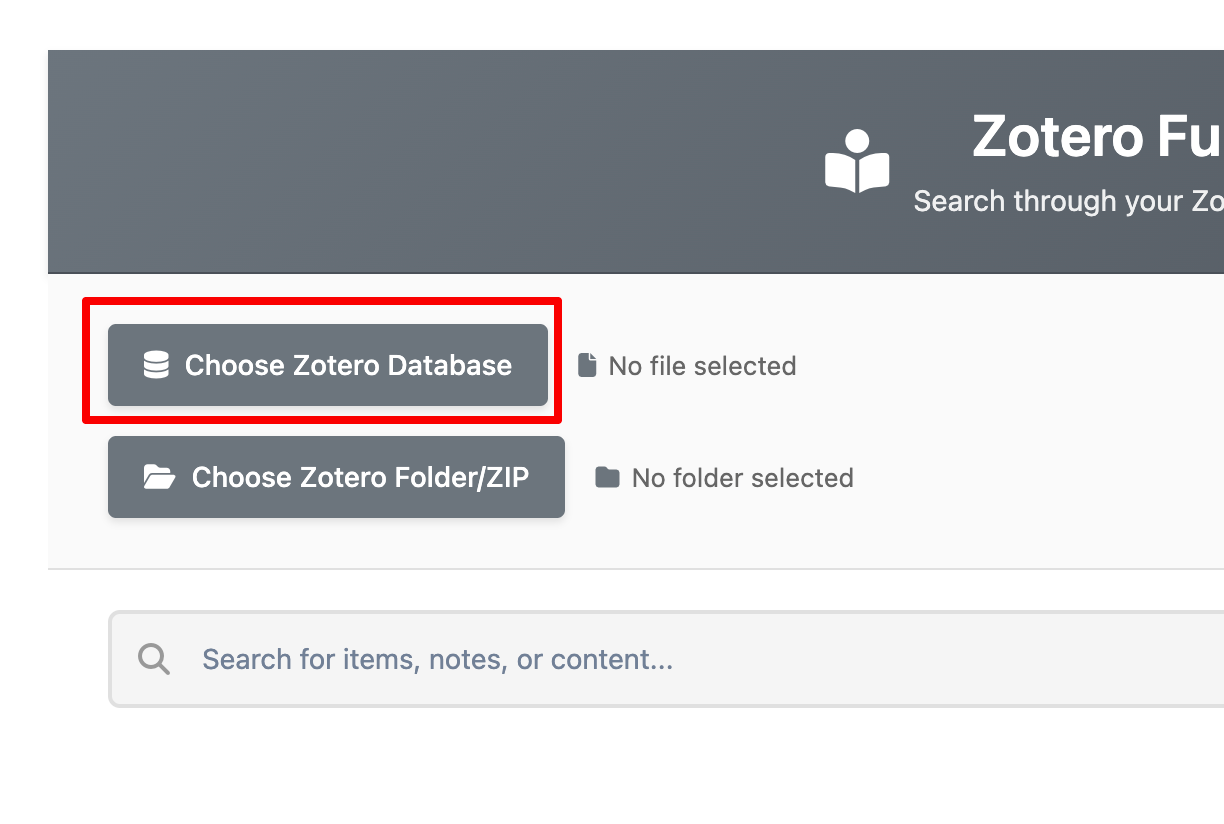
First click on the Choose Zotero DB button
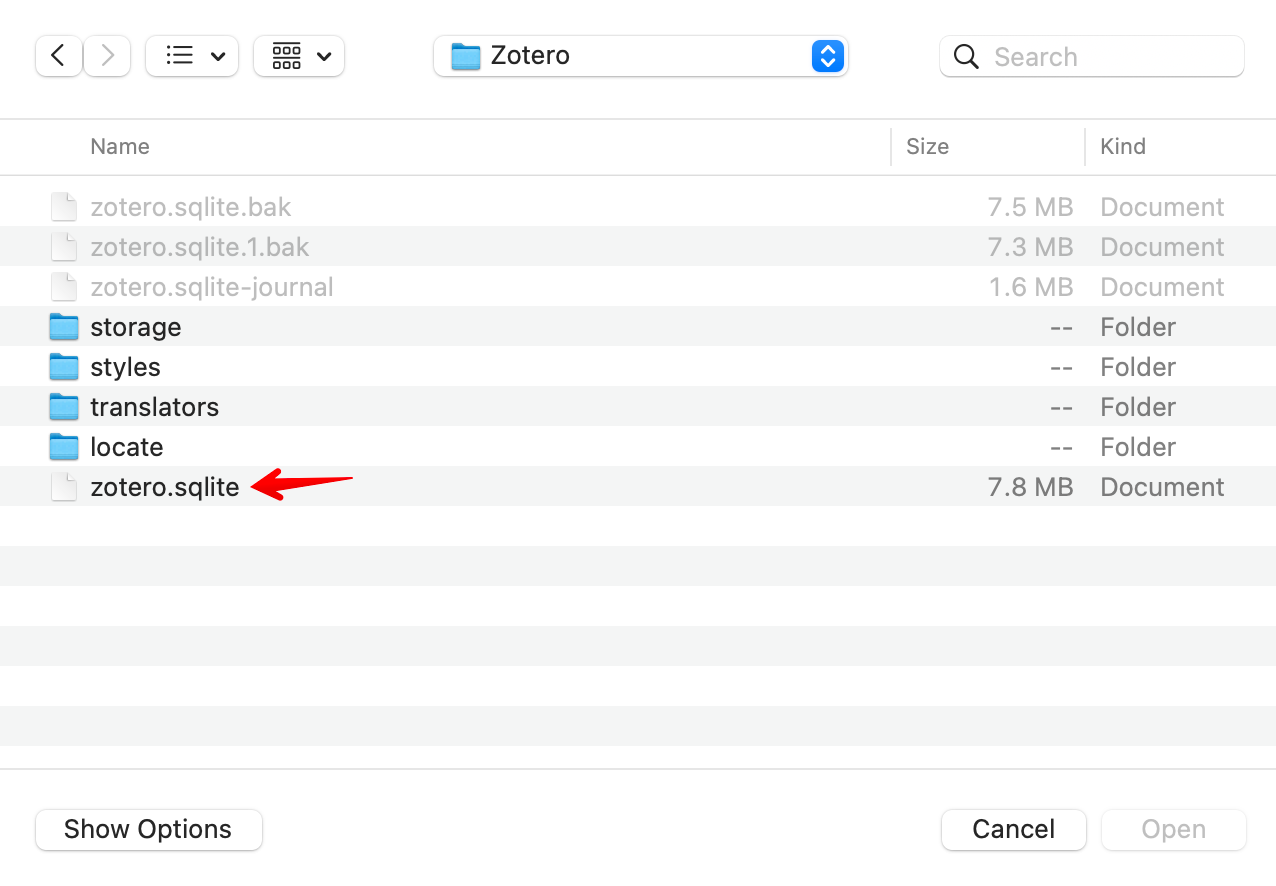
Select the sqlite file from your local Zotero folder. This is what it looks like on my Mac.
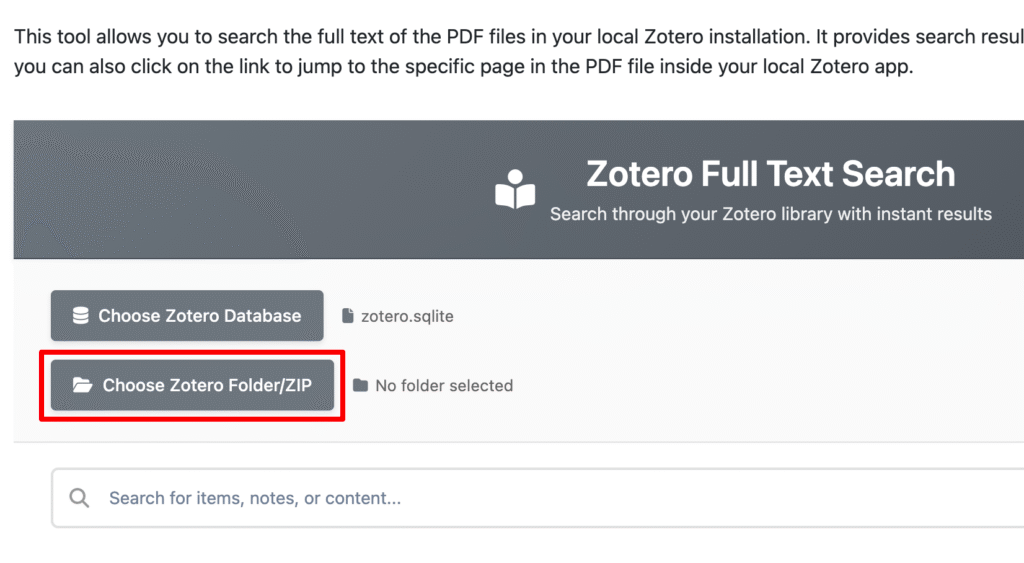
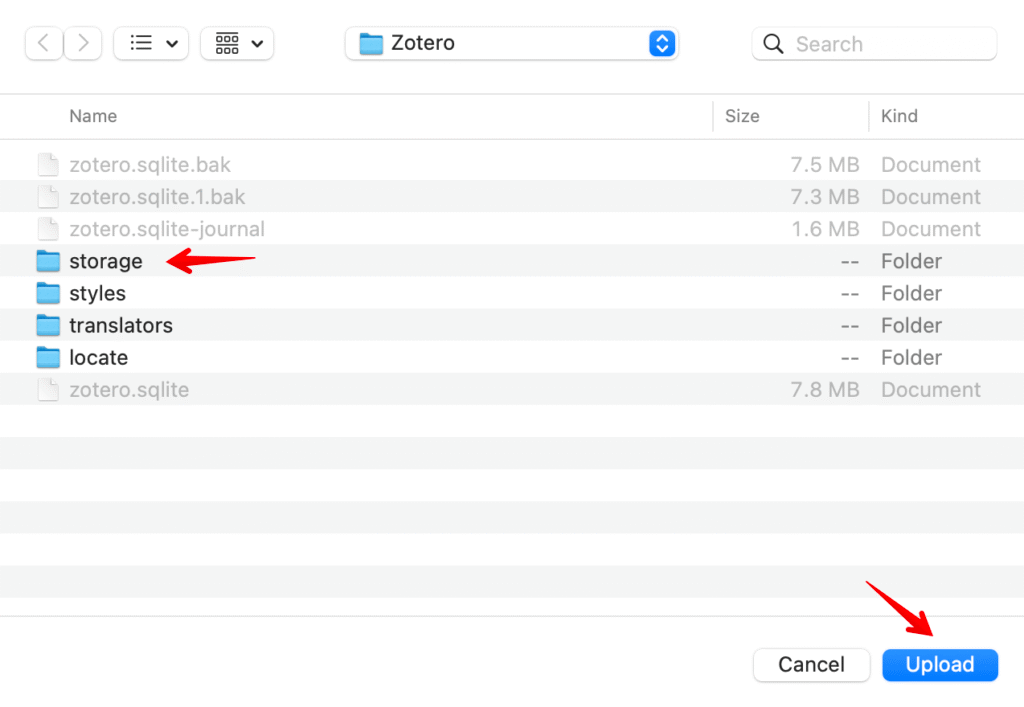
Then click on the Choose Zotero folder button
Choose the folder named storage and click on Upload
It will ask for permission to upload files to the site.
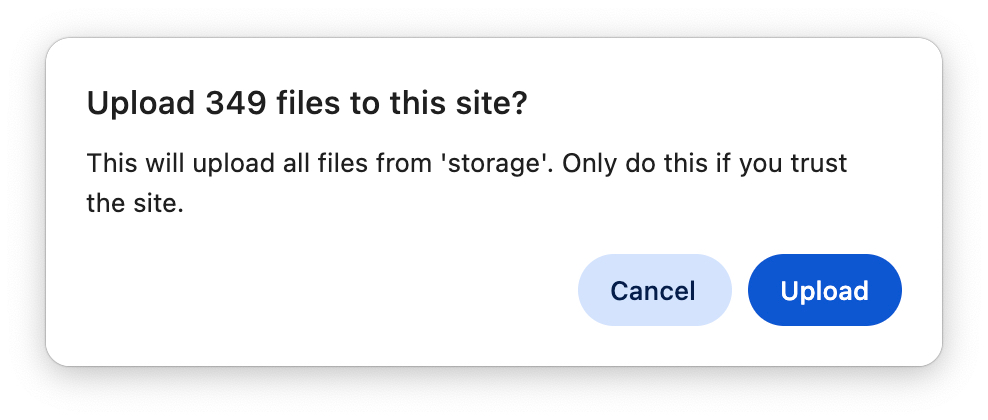
(It is not actually uploading your files to the server, this is just how the file chooser works)
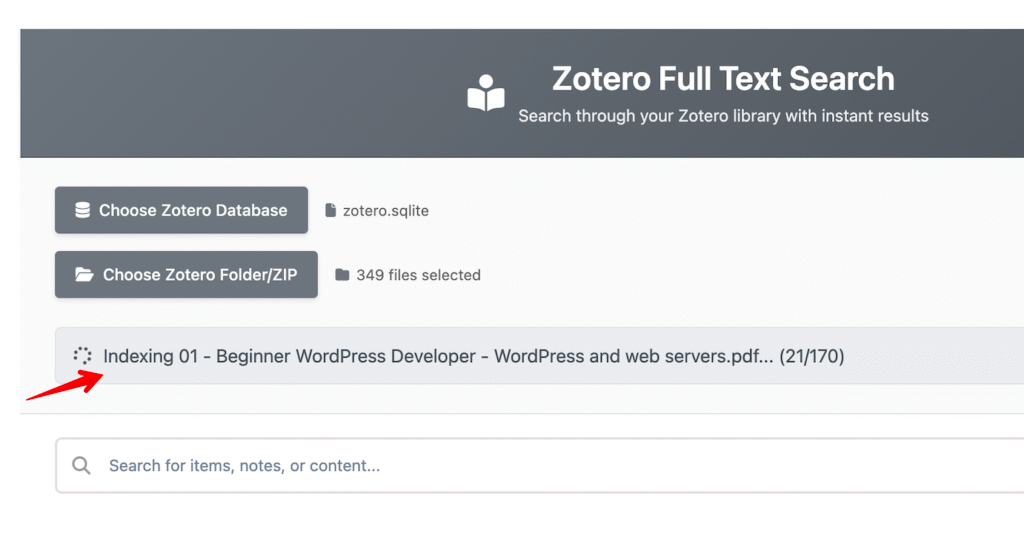
You will see lunrjs indexing your PDF contents. Depending on the number of PDF files (in my local app I have about 170 files) and your computer speed, this could take up to a minute.
Once it has finished, you will be able to enter your search term into the text box.
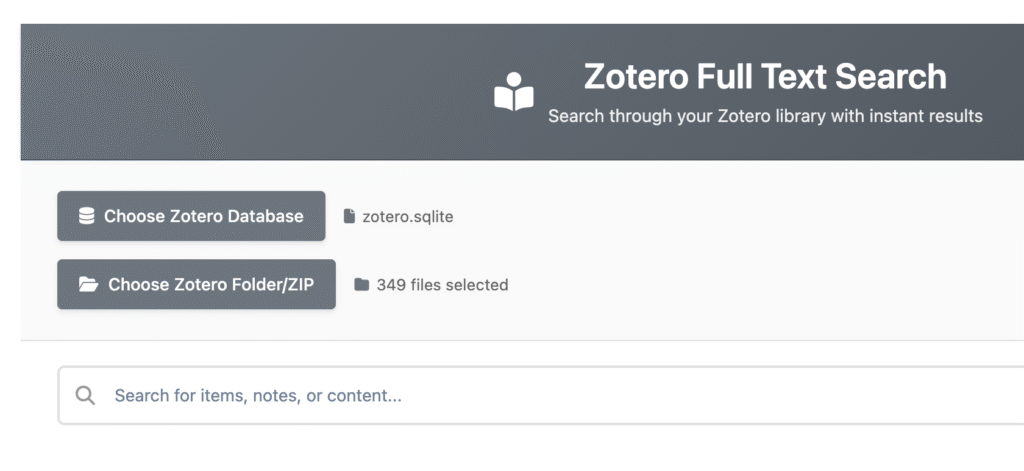
The search results will appear automatically as you type (instant search)
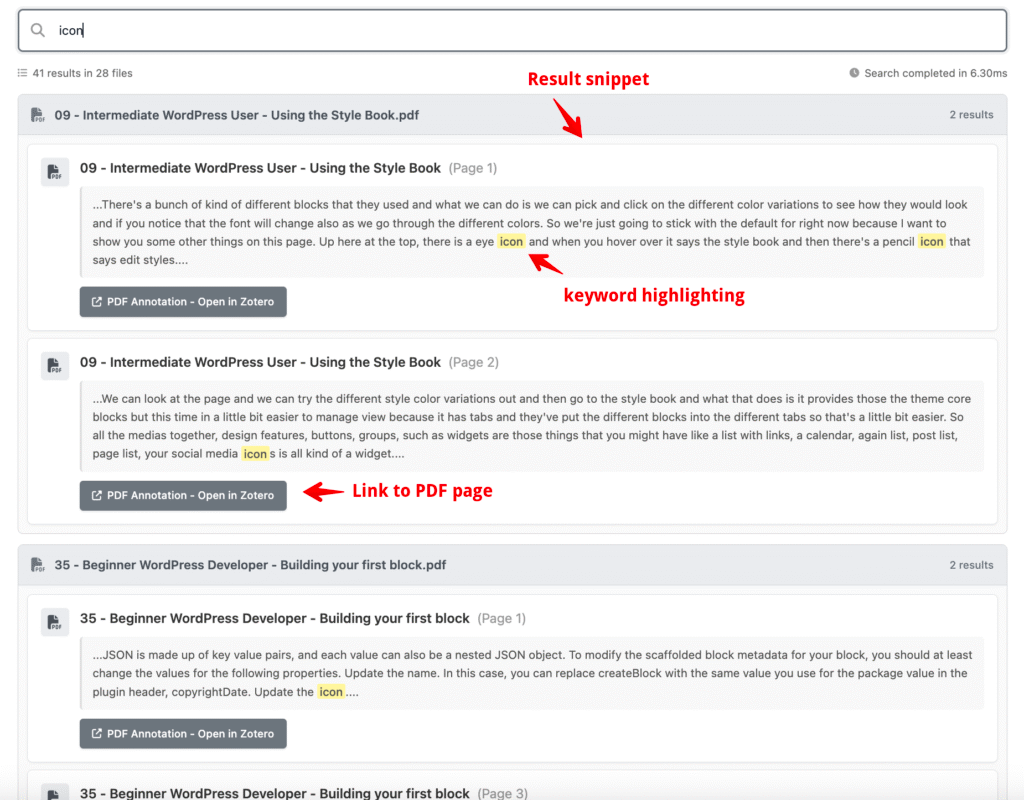
Clicking on the link will open a warning (standard behavior when a browser tries to open any link which starts with zotero://).
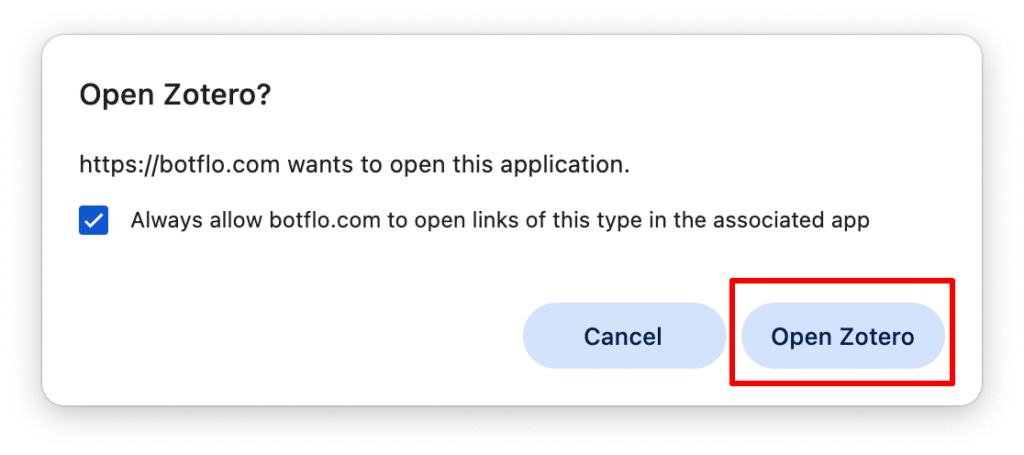
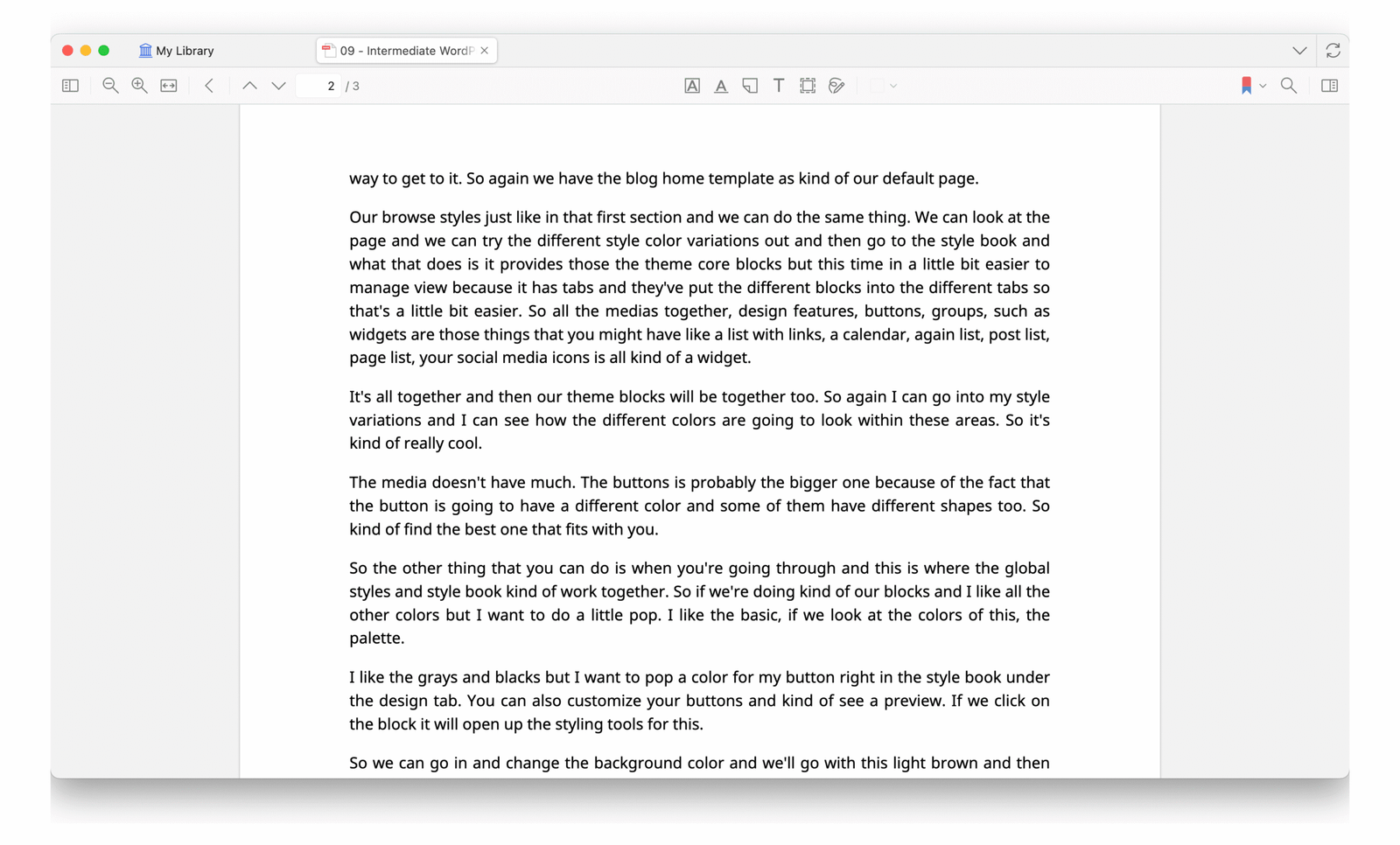
When you click on Open Zotero, it will open not just the PDF file, but also the very specific page inside Zotero. If you want to avoid this popup next time, check the “Always allow” checkbox.
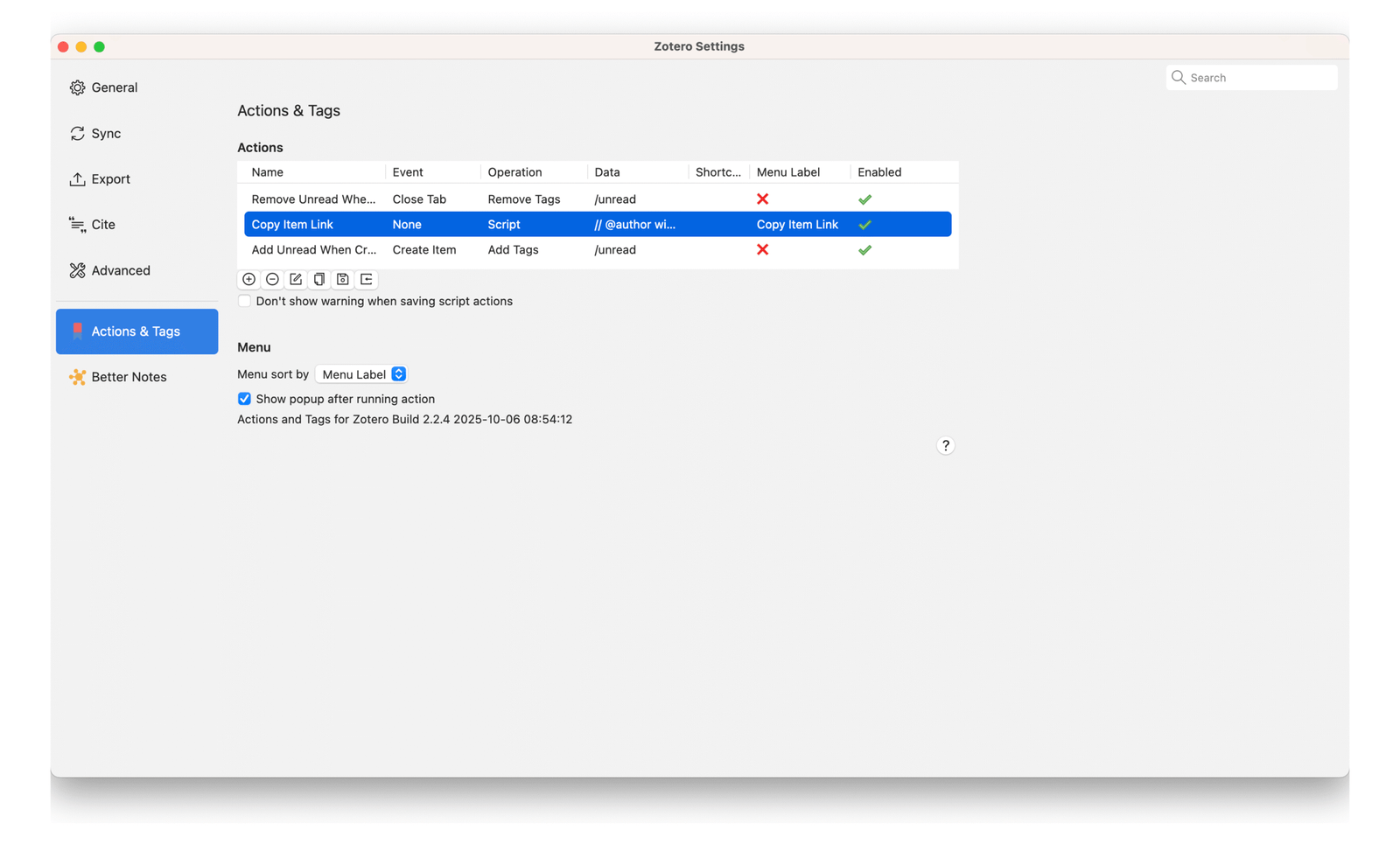
To jump to the specific PDF page you need to install Actions and Tags plugin in Zotero
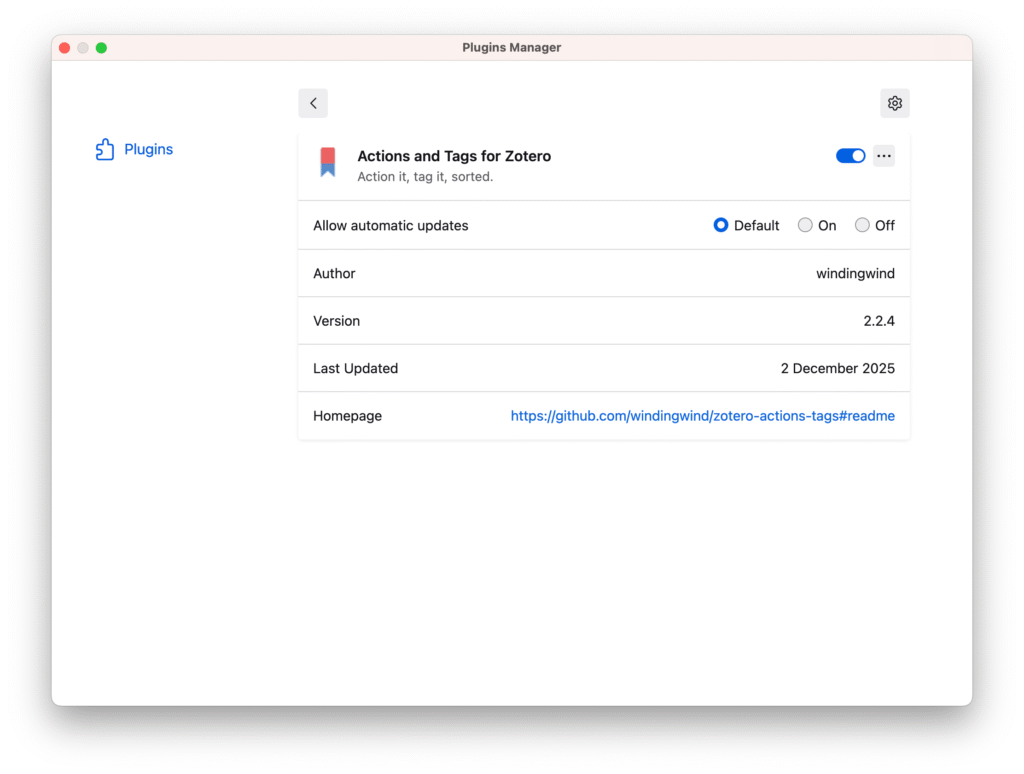
Then in the Settings, add a new action for copy item link by following these instructions